Introduction
Chrome Split View for Dynamics 365 users is one of the simplest productivity upgrades available — and most people are not using it. If you work with Microsoft Dynamics 365, you already know how dynamic your daily tasks can be. Whether you are part of a finance team, a supply chain professional, or a Dynamics 365 functional consultant, your work rarely stays on a single screen.
You move between dashboards, transaction forms, reports, and reference data constantly. Now think about how often you switch browser tabs in a single hour. Too often, right? This constant tab switching not only slows you down but also breaks your concentration.
In this blog, we explore how Google Chrome Split View helps Dynamics 365 users in enterprise environments work smarter, faster, and with greater accuracy — without any additional tools or plugins.
What Is Google Chrome Split View?
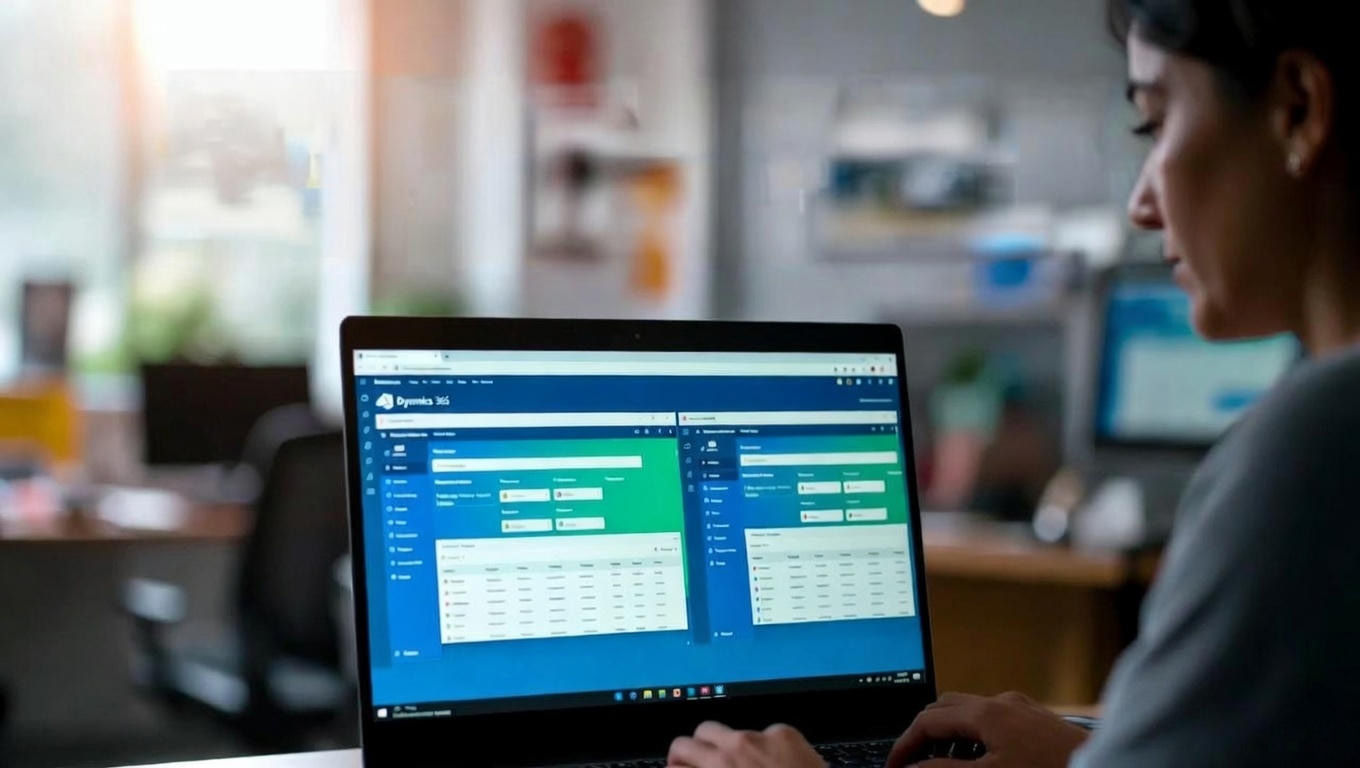
Google Chrome Split View allows you to view two browser tabs side by side within the same window. Instead of juggling multiple windows or relying on dual monitors, you can keep related information visible at the same time.
For professionals working on Dynamics 365 Finance, Supply Chain Management, Sales, or Customer Service, this feature fits naturally into everyday workflows and removes the frustration of constant context switching.
Key Highlights of Chrome Split View
- View two active Chrome tabs simultaneously in one window
- Compare data without switching screens or losing context
- Improve focus and reduce visual clutter during complex tasks
- Ideal for enterprise SaaS tools like Microsoft Dynamics 365
Why Chrome Split View Matters for Dynamics 365 Users
Dynamics 365 is designed for complex business processes. Users often need to cross-check information between modules, legal entities, or reports — making side-by-side visibility extremely valuable in day-to-day operations.
Common scenarios where this makes a real difference:
- Reviewing vendor details while creating a purchase order
- Checking GL balances while validating posted vouchers
- Comparing inventory levels while planning replenishment
- Referencing contract terms while processing a customer invoice
With Chrome Split View, all of this becomes smoother, faster, and less error-prone.
Key Benefits for D365 Enterprise Teams
- Faster task execution across modules
- Reduced manual errors through real-time data comparison
- Better data validation without losing your place
- Improved user experience during high-volume processing periods
Real-Life Use Cases in Enterprise D365 Environments
1. Finance Teams
Finance professionals can keep General Ledger entries open on one side while validating invoices or vouchers on the other. This is especially helpful during month-end closing, audit preparation, and reconciliation workflows where accuracy is critical.
2. Supply Chain & Operations
Inventory planners can monitor stock levels while creating purchase requisitions or transfer orders — improving accuracy and speeding up decision-making without switching between multiple windows.
3. Functional Consultants & Implementers
Consultants working on Dynamics 365 implementations can validate configurations while referencing documentation or running parallel test scenarios side by side — significantly reducing implementation and UAT time.
4. Support & Managed Services Teams
Support teams can troubleshoot issues by keeping Dynamics 365 screens and knowledge base articles open simultaneously — reducing resolution time and improving the quality of support delivered.
Productivity Gains That Actually Matter
Small improvements add up fast. Saving a few seconds on every task can translate into hours saved every week — especially for enterprise users handling high transaction volumes across multiple Dynamics 365 modules.
Chrome Split View helps by:
- Minimizing context switching between tasks and screens
- Keeping critical data visible throughout complex workflows
- Improving concentration during long working sessions
- Reducing the mental load of remembering information from a previous tab
For Dynamics 365 users working across offshore and onshore delivery models, this can significantly improve both productivity and job satisfaction over time.
How to Use Chrome Split View with Dynamics 365
Getting started is straightforward. No plugins, no additional tools — just smarter browser usage. For the latest step-by-step instructions, refer to the official Google Chrome support documentation.
- Open your Dynamics 365 pages — launch the two modules or screens you need to work with in separate Chrome tabs.
- Activate Split View — right-click on a tab and select the split view or side-by-side option, or drag a tab to the edge of the screen to snap it into position.
- Resize your panes — drag the divider between the two views to adjust the width based on which screen needs more space for your current task.
- Work seamlessly across both views — both tabs remain fully active and interactive, so you can enter data, run queries, and navigate freely on either side.
For more tips on optimizing your Dynamics 365 environment, explore our Microsoft Dynamics 365 resources and Geodata blog.
Frequently Asked Questions
1. What is Chrome Split View and how does it work?
Google Chrome Split View is a built-in browser feature that lets you display two tabs side by side within the same Chrome window. You can activate it by dragging a tab to the side of the screen or using Chrome’s built-in tab management options. Both tabs remain fully active, allowing you to work across them simultaneously without switching.
2. Does Chrome Split View work with Microsoft Dynamics 365?
Yes. Since Dynamics 365 is a browser-based application, Chrome Split View works seamlessly with all Dynamics 365 modules — including Finance, Supply Chain Management, Sales, and Customer Service. You can have two different D365 screens or even two different modules open side by side at the same time.
3. Do I need any plugins or extensions to use Chrome Split View?
No. Chrome Split View is a native browser feature built directly into Google Chrome. You do not need to install any extensions, plugins, or third-party tools to use it. It works out of the box on any device running a modern version of Chrome.
4. Can I use Chrome Split View without a dual monitor setup?
Yes. Chrome Split View is specifically designed for single-monitor setups. It allows you to replicate the benefits of a dual-monitor workflow within a single browser window — making it ideal for laptop users and remote workers who do not have access to multiple screens.
5. Which Dynamics 365 teams benefit most from Chrome Split View?
Finance teams, supply chain planners, functional consultants, and support teams all see significant productivity gains from Chrome Split View. Any role that involves cross-referencing data between two Dynamics 365 screens — such as comparing GL entries with invoices, or monitoring stock while creating orders — will benefit immediately.
6. Are there other browser productivity tips for Dynamics 365 users?
Yes. Beyond Split View, D365 users can benefit from Chrome’s tab grouping feature to organize modules, keyboard shortcuts to navigate faster within D365, and browser bookmarks for frequently used Dynamics 365 workspaces. Geodata regularly shares practical D365 productivity tips — explore our blog for more.
Conclusion
Chrome Split View for Dynamics 365 may seem like a small browser feature, but for enterprise users handling complex, multi-module workflows, it delivers real and measurable productivity improvements. By enabling side-by-side access to critical information, it enhances efficiency, reduces errors, and keeps your workflow moving without interruption.
At Geodata, we help organizations get the most out of their Microsoft Dynamics 365 investments — from implementation and optimization to training and managed support. Learn more through our Dynamics 365 Finance services, Power BI analytics solutions, and client case studies.
Explore our blogs and resources to discover more practical tips and insights for Microsoft Dynamics 365 users.
Looking to optimize your Dynamics 365 environment? Connect with Geodata today and let our experts help you work smarter.